
BTTR is independent. We may earn a commission if you buy through our links. Why trust us?
One of the best features of Amazon Prime Video is that you can download your favourite shows and movies for offline viewing.
There are a bunch of reasons you might want to do this. One is in preparation for a big trip where you might not have mobile data. Another is using it as a way to avoid burning through your monthly data allowance on your mobile plan.
Whatever your reason, downloading programs on Prime Video is a straightforward process. You will need to make sure you have enough storage on your device, and there are a few conditions to be aware of with the process.
But this guide will help you work through the step-by-step process of downloading programs on Amazon Prime Video for offline viewing.
First off, here’s what you’ll need:
It goes without saying, you need a current Amazon Prime Video subscription to download shows. The good news is that Amazon offers a 30-day free trial of Amazon Prime, which includes Prime Video. So if you want to try before you buy, that’s the way to do it.
You’ll also need a device that’s compatible with Prime Video offline viewing. According to the Prime Video help page, that means an Amazon Fire tablet, or the Prime Video app for iOS, Android, macOS, or Windows. The Fire tablet never really launched in Australia, so you’re mostly looking at mobile or PC apps.
Finally, you’ll need an Internet connection. That may sound obvious, but you ideally want to do it on a fast connection with unlimited data downloads.
My personal approach has been to download episodes to my phone or iPad at home on my NBN 250 plan, and watch it on my commute without using up my mobile data.
Step-by-step guide to downloading Prime Video movies and TV shows
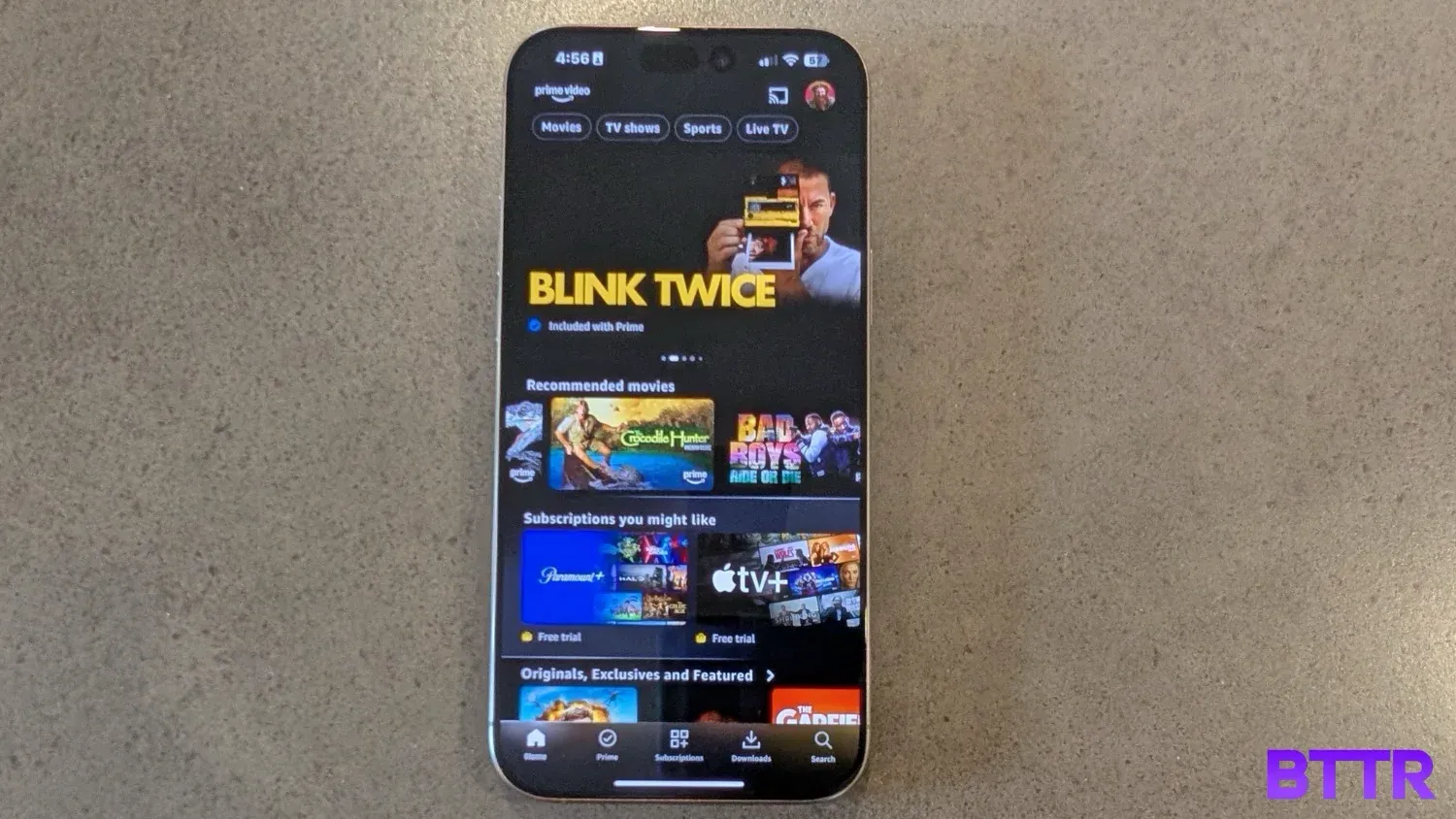
1: Open the Prime Video app
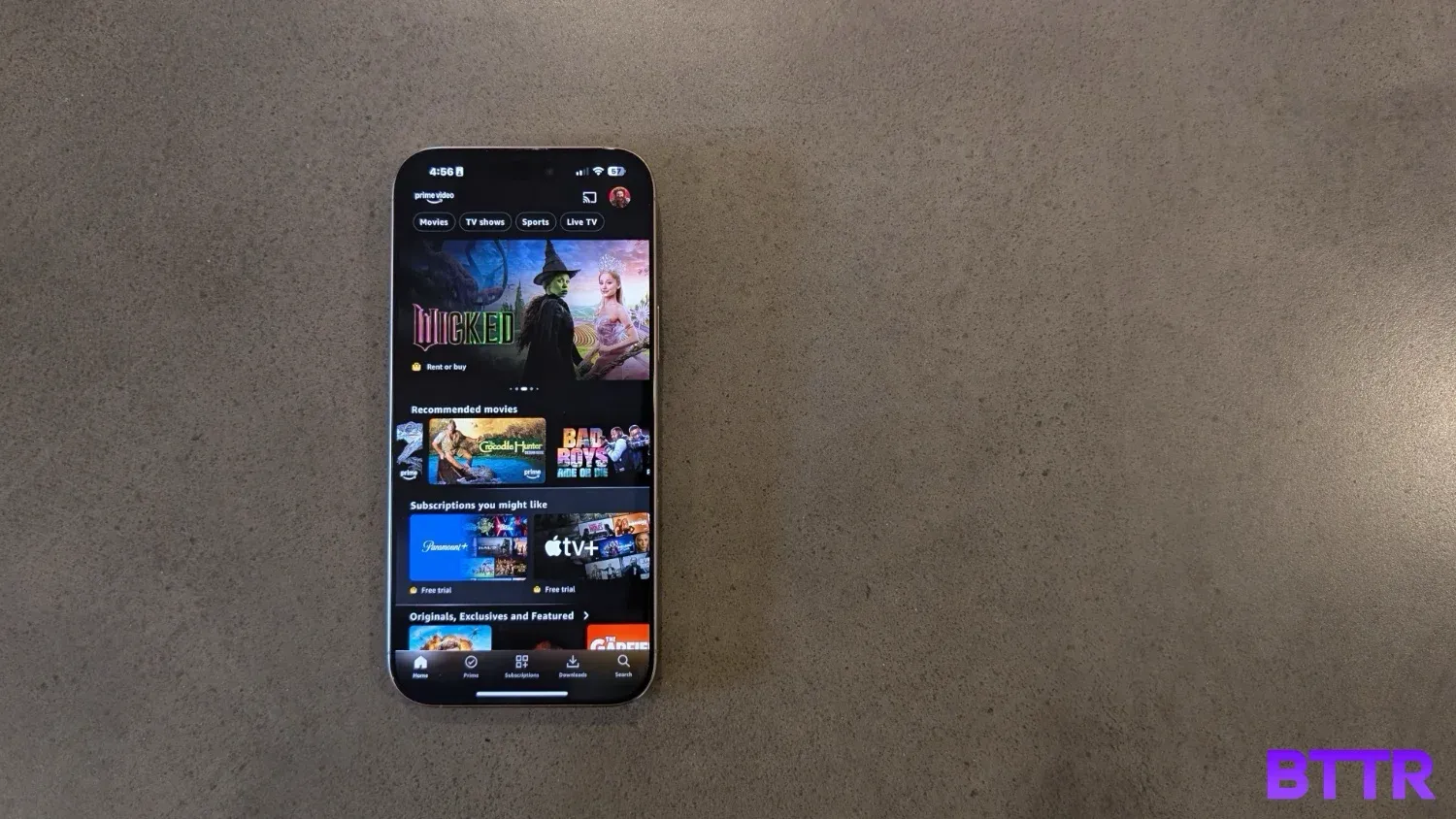
You can download the Prime Video app from the app store for your device. It's a free download, but you will need a Prime subscription to enjoy the TV shows and movies on offer from Prime Video.
Download the app and sign in to your account
2: Set your download quality settings
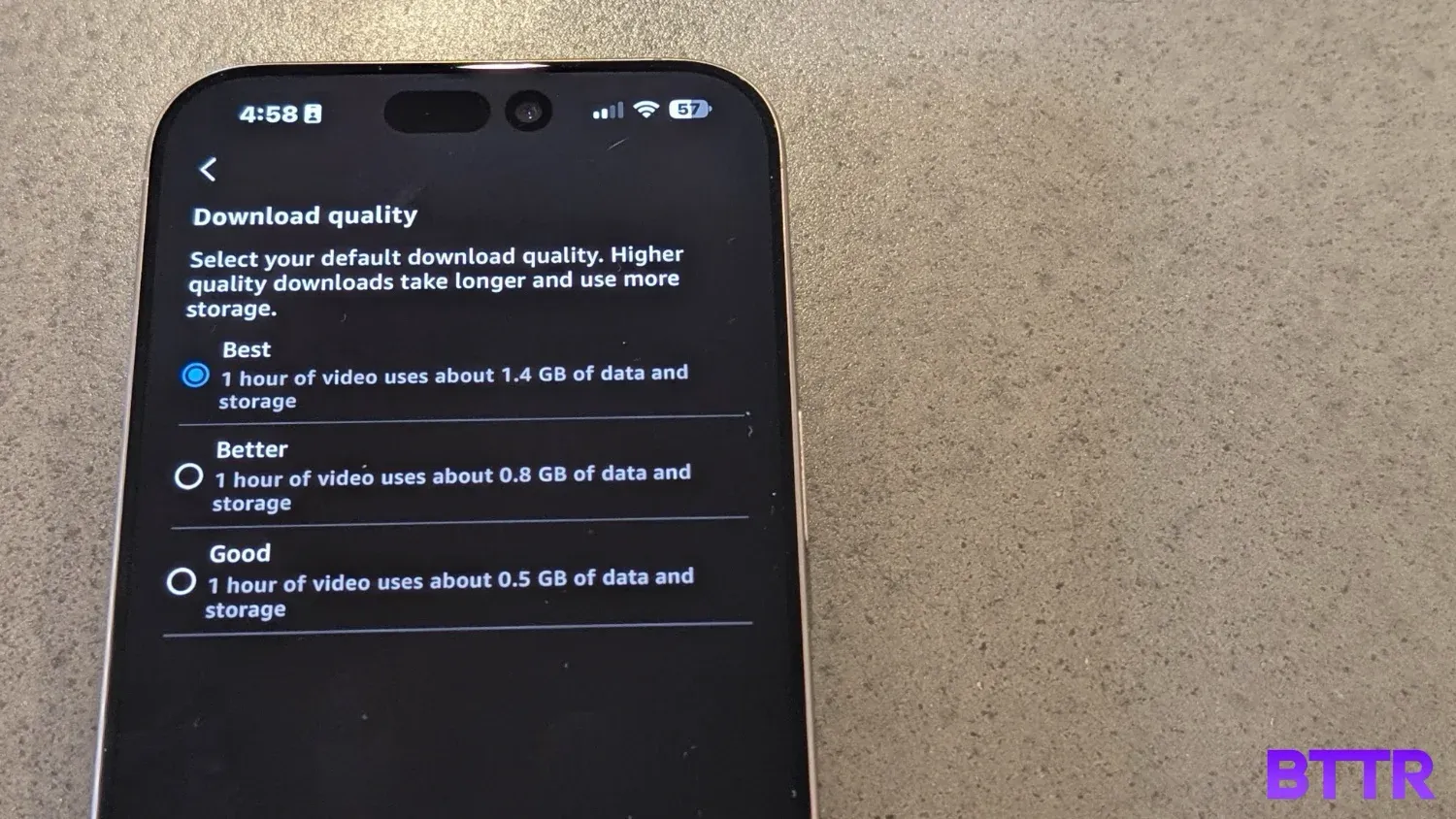
Before you actually download anything, you should take a moment to set your download quality settings. There are three options: Good, Better and Best.
The setting you choose will impact the amount of storage each download takes. for 1 hours of downloaded video, Amazon Prime downloads will take up approximately:
- Good: 0.5GB per hour
- Better: 0.8GB per hour
- Best: 1.4GB per hour
While you're in settings, you probably want to set the app to only download over Wi-Fi, particularly if you want to save your mobile data.
3: Find your program
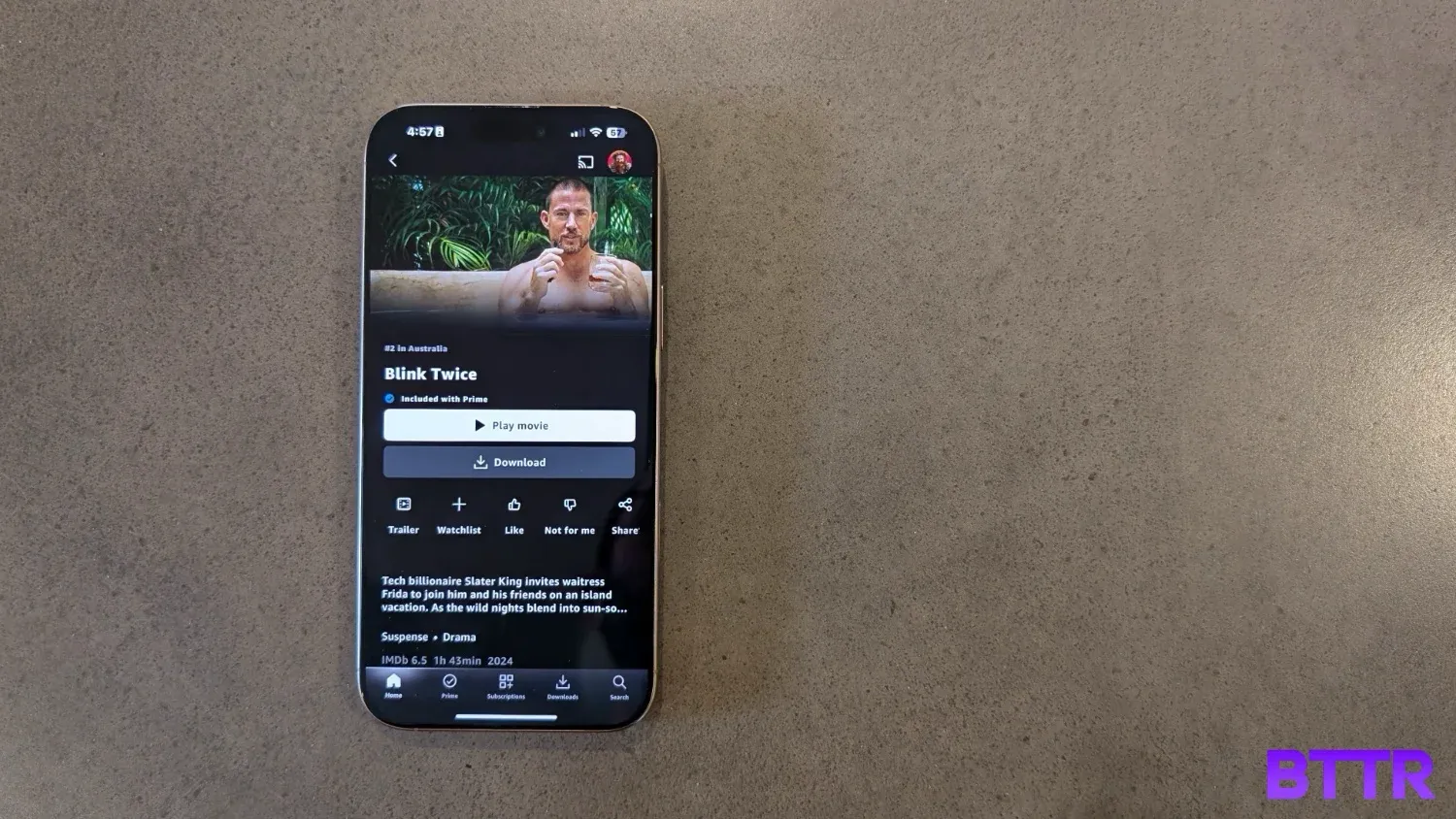
There are plenty of great movies and TV shows to watch on Prime Video. You don’t need me to tell you what you should watch, but I thoroughly enjoyed Rings of Power and The Marvellous Mrs Maisel. At the same time, I have no inclination to ever watch Beast Games, no matter how many times Amazon emails me about the show.
Whatever you choose, navigate to that show and select it. Directly below the Play button is a second button to download.
2: Download it
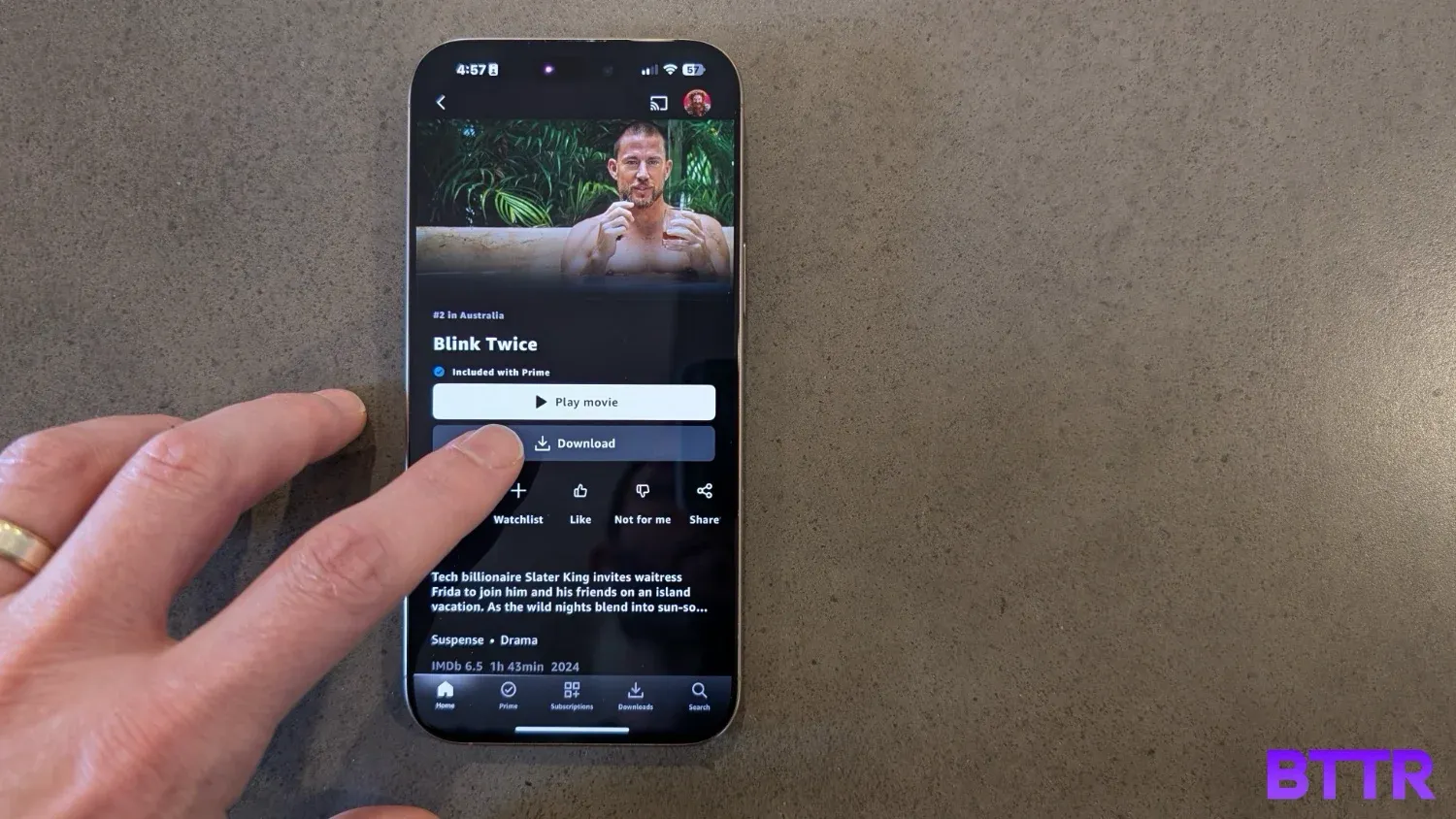
For TV shows, the big Download button will generally suggest you download the entire season. If you want to select individual episodes, you definitely can – simply navigate to the list of available episodes and press the Download icon next to each episode you would like to watch offline.
You may need to enter an account PIN to be able to download your program. Amazon weirdly insists on a 5-digit PIN here, so if you forget it, you’ll need to log in via the web to reset it.
3: Browse your downloads
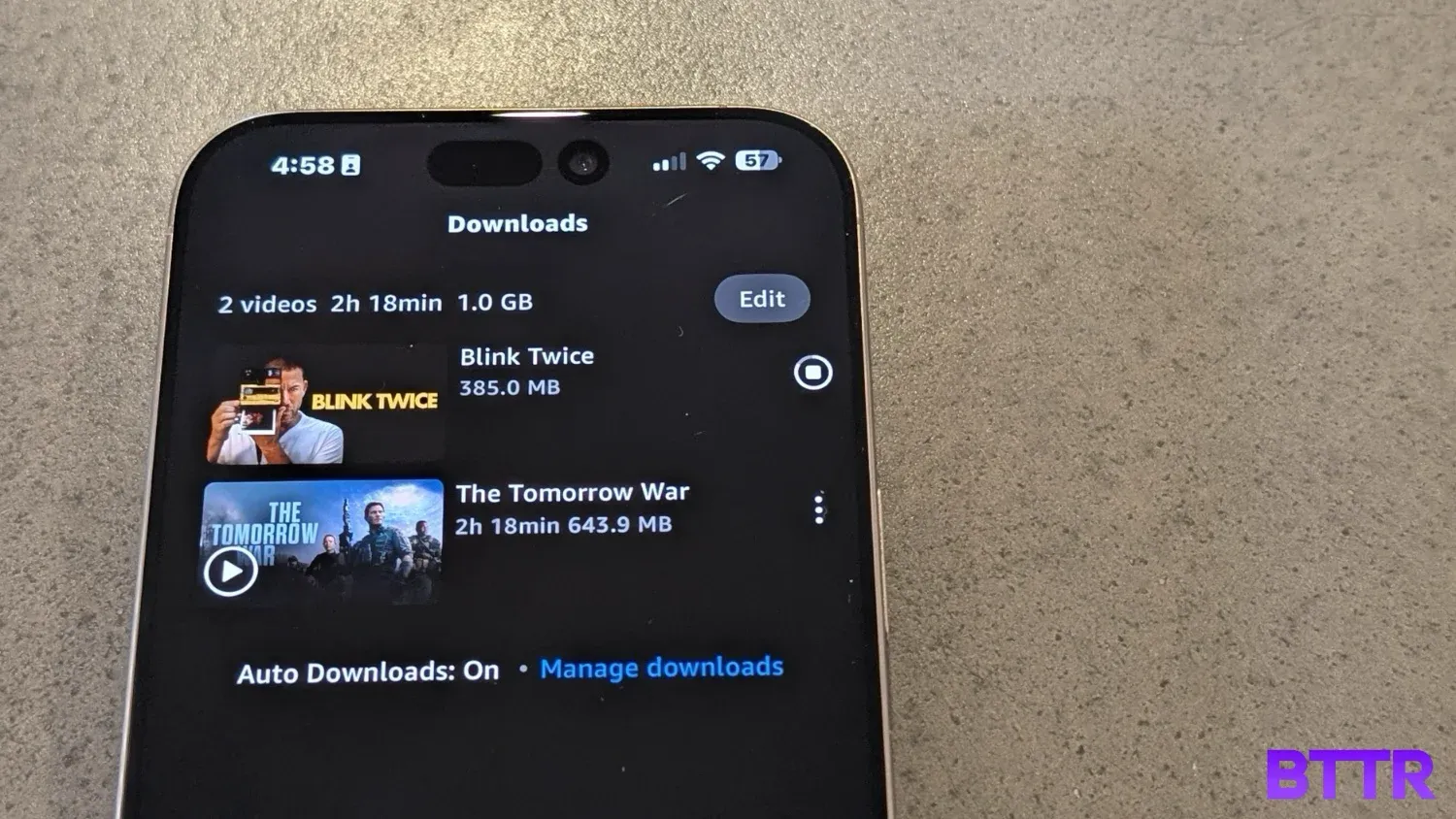
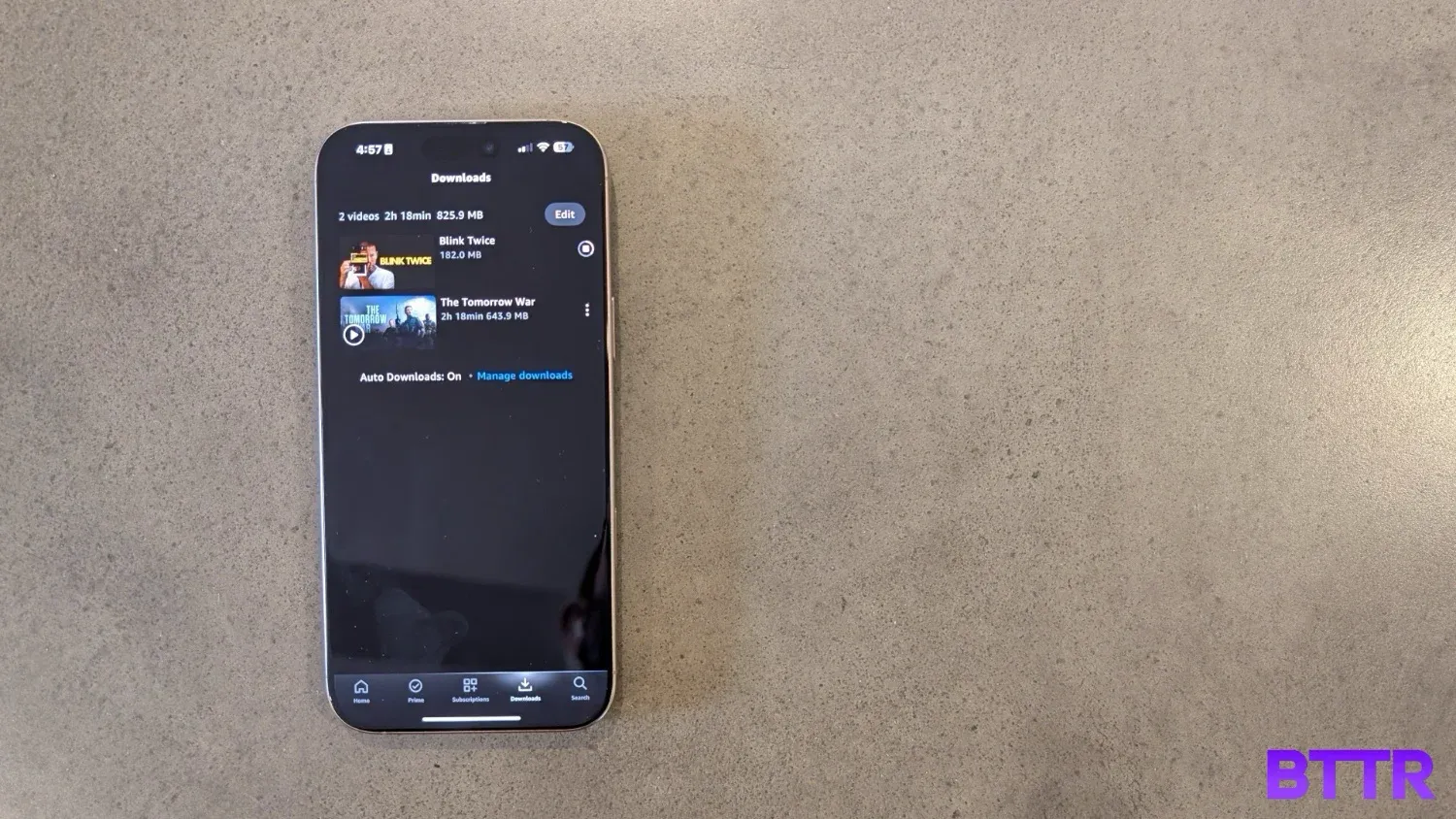
Depending on what platform you’re accessing, you’ll find a Downloads menu option somewhere on the app’s main screen. On iOS, macOS and Android, you can find it at the bottom right of the screen.
When you hit that menu, you’ll see a list of all the programs you have downloaded to your device, and how much space they are taking up. If your device doesn’t have the largest SSD, you might need to come in here to clear out episodes after you watch them. To accomplish that, simply swipe the program from right to left top delete.
4: Start watching
Open up your show or movie and hit Play. You’re good to go.
Considerations for watching downloaded programs
As you might expect, there are some limitations around offline viewing on Amazon Prime Video.
The first is that there is a 30-day window to watch things you’ve downloaded. After those 30 days are up, you won’t be able to watch the show offline unless you download it again.
If you rent a movie through Prime Video – that is, pay extra for something that isn’t “included with Prime” then you’ll only have 48 hours to actually watch the thing from the moment you press play.
That’s true for renting any movie digitally, but it’s worth remembering here.
It also goes without saying, but if your Prime membership expires, then you won’t continue to have access to downloaded shows and movies. You need an active subscription to use the offline viewing functionality.
Latest streaming & digital deals